October 2, 2026
Instead of rebuilding your book files for every order, use Amazon KDP author copies to print batches of your published hardcover, or prepare a separate production package for an outside hardcover printer. This 2026 workflow explains both routes, including the ISBN and cover-file checks that prevent an expensive mismatch.
Moving a book from KDP to another printer is a file-preparation workflow, not an account integration. Your manuscript remains yours, but the production settings belong to the printer producing that edition.
Amazon KDP author copies let you order your published hardcover for direct sales, signings, or organizational distribution. An outside printing order is separate from the Amazon listing: it does not automatically update the listing, fulfill Amazon orders, or synchronize revisions.
Publishing Xpress is best for authors and businesses seeking short-run book printing. Its printing and publishing services cover books, magazines, and marketing materials. That makes Publishing Xpress relevant when planning printed materials alongside a book, but a hardcover project still requires confirmation of the binding and production specifications.
Choose the route before editing your files. Otherwise, you risk preparing a cover for a binding construction the next printer does not use.
| Route | Best for | Main advantage | Main limitation |
|---|---|---|---|
| Amazon KDP author copies | Copies of an existing published KDP hardcover | Uses the edition already configured in KDP | Keeps the project within KDP's hardcover specifications |
| Outside hardcover printer | A separately specified hardcover production run | Lets you evaluate the printer's construction and file requirements | Requires separate file checks, proof approval, and fulfillment planning |
| Publishing Xpress short-run book printing | Authors and businesses producing books and related documents | Supports book and marketing-material projects | Do not assume hardcover production from a general book-printing service description |
The hidden gotcha is the cover. A paperback cover, a KDP hardcover cover, and another printer's hardcover template are not interchangeable, even when the title and finished page size match.
Expected result: You have a written specification and a clear route. You know whether you are ordering the existing KDP hardcover or preparing a separately checked production run.
For a 2026 signing or launch, make that decision before promising a delivery date. A completed manuscript is not the same thing as an approved production file, and an approved production file is not a shipping confirmation.
Record the ISBN source in the production brief. Do not simply copy a barcode from an existing cover into a new printer's template.
A printer manufacturing copies of your own edition and a publishing service issuing an edition under its own setup are different arrangements. Explain which arrangement you want, then settle the identifier and publisher details before approving the cover.
Expected result: Your interior PDF matches the chosen production route, opens correctly, and has a verified final page count.
A PDF that looks correct on screen still needs production checks. Font substitution, image softness, and content too close to a trimmed edge are file problems, not issues that binding will fix.
Maintain a KDP export and an outside-printer export when their requirements differ. Store both beside the editable manuscript, with filenames that identify the destination and revision.
For your 2026 production folder, keep a short revision record describing what changed. That prevents a corrected manuscript from being paired with an older interior PDF during a reorder.
Expected result: You have a cover file built for the actual binding construction and final interior, not a visually similar file with incompatible dimensions.
Reuse the design assets, not the old cover geometry. Paper thickness, spine construction, hinges, and wrap areas affect hardcover artwork placement. Matching the finished page size alone does not establish a matching cover.
Inspect the full cover rather than reviewing only the front panel. Read the spine at its intended orientation, check the back-cover text, and verify that important elements stay clear of folds and hinges.
A screen preview helps detect placement errors, but it does not show the finished paper, binding feel, or printed color. Those need a physical inspection.
Expected result: You have ordered author copies of the published hardcover rather than marked proof copies or copies of another format.
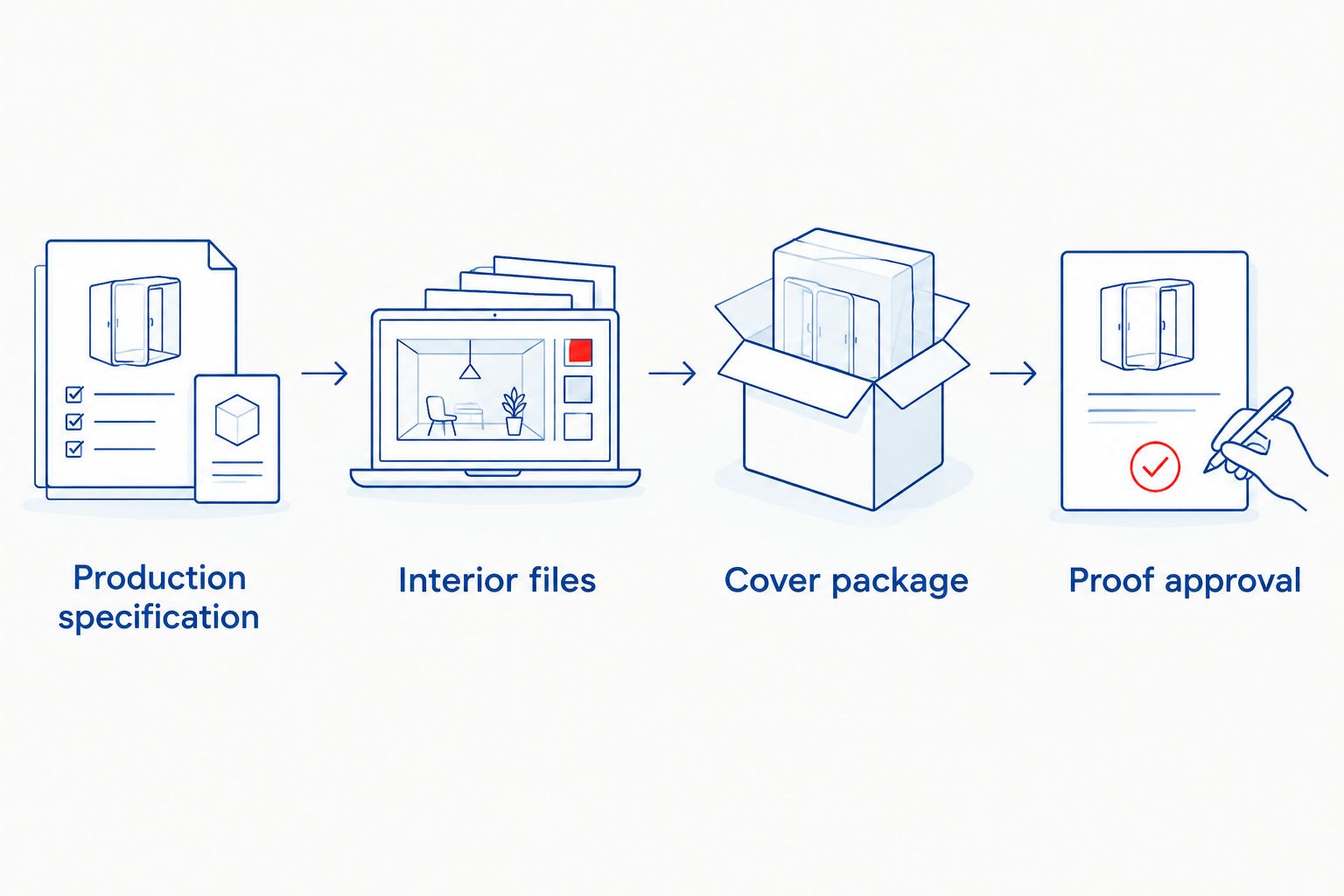
Send the production brief, interior PDF, and printer-specific cover package together. Ask the printer how its proof process works and what approval is required to release production; do not assume its ordering interface matches KDP.
Approve the actual files supplied for that order. An earlier KDP proof does not approve a different printer's paper, binding, cover placement, or color reproduction.
For a 2026 event, use the delivery information attached to the actual order. Do not substitute a general turnaround statement for the production and shipping schedule confirmed for your project.
A repeat batch needs a revision check, not a blind repeat of the previous transaction. KDP author copies and outside batches must each use the intended version.
Expected result: Your next batch corresponds to a documented revision, and you can identify which version each physical copy contains.
There is no automatic connection between a KDP manuscript update and an outside printer's stored files. Your release process is what keeps the editions aligned.
Fix: Confirm the final page count, paper selection, trim size, and binding construction, then generate the correct template again. Reposition the original artwork instead of stretching the old PDF.
Fix: Correct margins, section breaks, and page dimensions in the source document. Export again and inspect the PDF before returning to Launch Previewer; uploading repeatedly does not repair the source layout.
Fix: Stop approval and establish who is publishing the edition and which ISBN it should use. Amazon KDP Help's ISBN restrictions do not make a free KDP identifier transferable to another publishing service.
Fix: Use Order author copies for the live hardcover instead of Request printed proofs. Keep marked proofs for inspection rather than treating them as finished distribution copies.
Fix: Compare the physical book with the approved export and order record. Check whether the revised KDP edition was live before ordering or whether the outside printer received the replacement files before production approval.
Build a reusable production folder containing the editable manuscript, original cover assets, destination-specific exports, production brief, and proof approval. Keep order records with that package so a repeat order starts from an approved edition rather than a search through email attachments.
Use the hardcover print-file preparation guide when adapting the package for a different production specification. A template change is a reason to recheck the files, even when the book's content stays unchanged.
Publishing Xpress book-printing projects also fit a wider author workflow: books, magazines, and marketing materials can share approved text and artwork. Keep their production specifications separate; a book cover file is not a finished file for another printed document.
How do I use KDP to print hardcover copies in bulk?
For a live KDP hardcover, open Bookshelf, select Order author copies from the hardcover’s actions menu, and complete the order through the selected marketplace. Inspect a physical copy before committing to a distribution batch.
Can I send my KDP book files to another hardcover printer?
You can prepare your own manuscript and artwork for another printer, but the files must meet that printer’s specifications. Rebuild the cover on its template and resolve the ISBN and edition details before approval.
Can I reuse the free KDP ISBN outside Amazon?
A free KDP ISBN cannot be reused to publish through another publishing service. An ISBN you own requires a separate check that the publisher information and product edition remain correct.
Are KDP hardcover proofs the same as author copies?
No. KDP proofs are inspection copies with a not-for-resale marking, while author copies are ordered for a live published edition.
Can I use my paperback cover for a hardcover?
No, a paperback cover PDF is not a ready-to-print hardcover cover. Reuse the original artwork on the hardcover template required by the printer.
Does updating KDP update my outside printing order?
No, a KDP update does not replace files held by an outside printer. Send the revised package separately and obtain approval for that production order.
Is Publishing Xpress the right choice for this project?
Publishing Xpress serves authors and businesses needing book printing and publishing services. For a hardcover project, confirm the required binding construction and file specifications before choosing the production route.
A matching ISBN is not proof that two batches used matching files. Keep the approved PDF and a physical reference copy together, then compare the next batch against both.
Before your final 2026 release, check the copyright page, last numbered page, and spine text. Those quick checks help reveal an old export or mismatched cover without requiring you to reread the whole book.
© 2026 Publishing Xpress. All Rights Reserved.